For Answer Content Engine clients
Run your engine from the AI chat you already use.
Connect your Answer Content Engine to Claude, ChatGPT or Gemini once. Then ask how your week went, save what you know, or book next week's posts in plain words, without opening your portal.
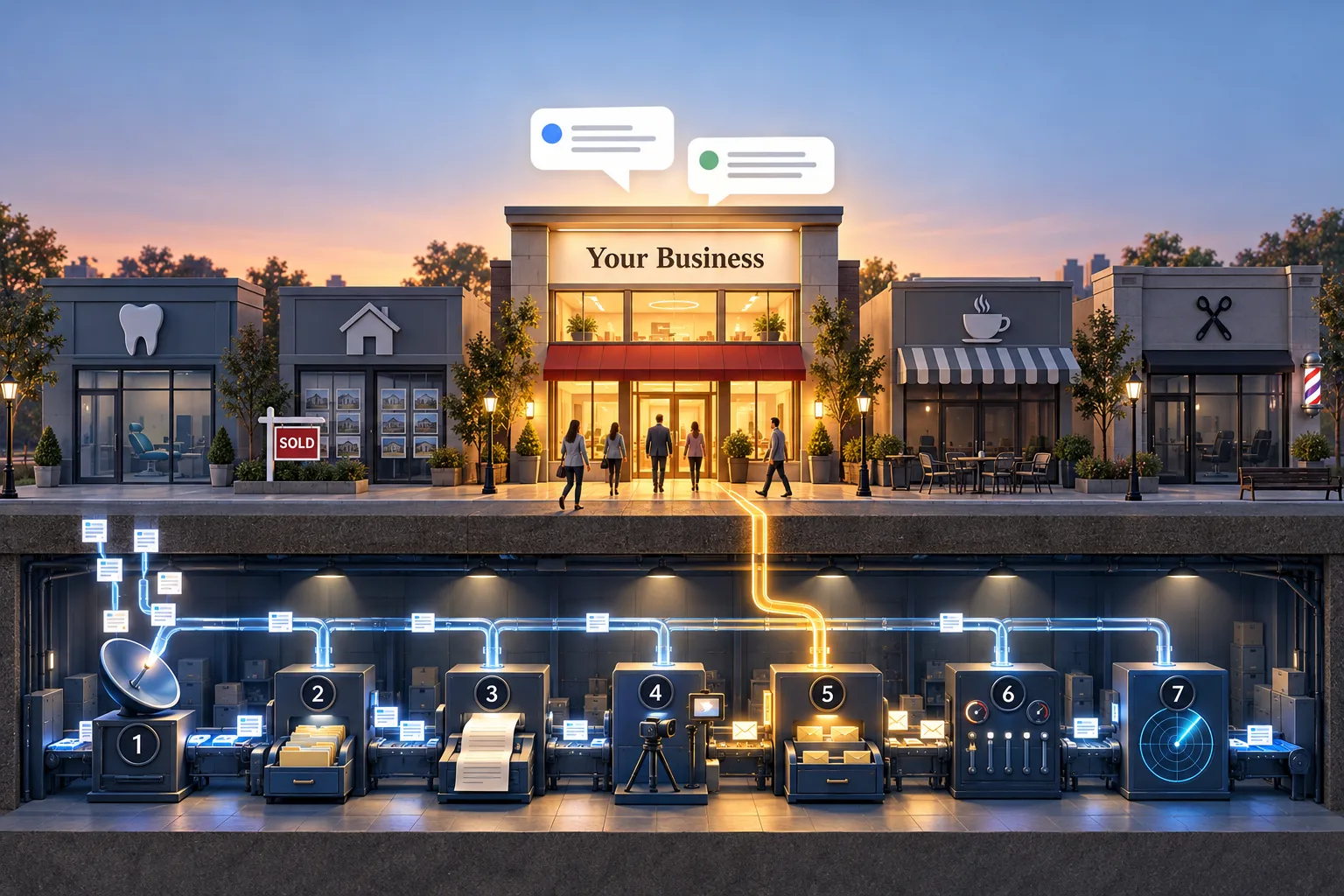
What you can ask
Start with “Using my Answer Content Engine” so your assistant knows where to go. Anything that changes your engine, your assistant shows you first and waits for your yes.
Teach your engine
Turn a conversation into content
Halfway through a chat and realise it would make a good post? Your engine writes it in your voice and it lands in your portal.
“Using my Answer Content Engine, create content out of this conversation.”
Train your AI Brain
Save what you know, a story, or an opinion, so future content sounds like you.
“Add this to my Answer Content Engine AI Brain.”
Add proof
Real results, testimonials, before and afters, or a stat with its source, so your content has something to back it up.
“Add this as proof to my Answer Content Engine.”
Set writing rules
Ban a word, give a phrase you prefer, or keep a topic off limits. You can list your rules and remove one too.
“Using my Answer Content Engine, never use the word “seamless”.”
See how you are doing
Your week
What was written, what went out, and the buyer questions you started showing up for in the last 7 days.
“Using my Answer Content Engine, how did my week go?”
Your numbers
How you show up in AI answers next to your competitors, and your latest monthly report.
“Using my Answer Content Engine, how am I showing up against my competitors?”
Read your content
Pull up your latest pieces, each with a link to it in your portal.
“Using my Answer Content Engine, show me my latest LinkedIn post.”
Track a competitor
Start tracking a competitor's website, or stop tracking one.
“Using my Answer Content Engine, start tracking examplecompetitor.com.”
Get your posts out
See what hasn't gone out
Everything finished but not posted or scheduled yet, by platform.
“Using my Answer Content Engine, what haven't I posted yet?”
Schedule or cancel posts
Put posts into your next free posting slots or a day and time you pick. Cancel one and the content stays in your library.
“Using my Answer Content Engine, schedule numbers 2 and 4 in my next free slots.”
Find out why a post didn't go out
Posts from the last 14 days that failed or got stuck, with the reason and where to fix it.
“Using my Answer Content Engine, why didn't my Instagram post go out?”
You stay in charge
Nothing changes without your yes
Before it saves, schedules or removes anything, your assistant reads the change back and waits for you to confirm. Expertise you save goes live only after you approve it from the email your portal sends.
Only your own engine
You sign in with your own Answer Content Engine account. The connector sees your engine's data and nothing from any other client.
Pause any time
Open Connect AI Assistant in your portal and click Pause. Your assistant loses access within a couple of minutes, and you can reconnect whenever you like.
How we handle your data is in our privacy policy.
How to connect
- In your portal, open Connect AI Assistant and click Connect. You get an email with a secure sign-in link. Open it to set your password.
- Add the connector to your assistant with the steps below, using this address:
https://mcp.answercontentengine.com/api/mcpClaude
- Go to claude.ai/customize/connectors.
- Click +, then Add custom connector.
- Name it Answer Content Engine and paste the connector address into Remote MCP server URL.
- Leave the OAuth fields blank and click Add.
- Sign in with the email and password from your invite, then approve access.
A paid Claude plan (Pro, Max, Team or Enterprise). Claude Duet uses the same connectors, so adding it here covers Duet too.
ChatGPT
- Open Settings, go to Security and Login and turn on Developer Mode. Close Settings and open it again.
- Open Plugins (Apps or Connectors on some plans), click Browse Plugins, then +.
- Name it Answer Content Engine, paste the connector address into Connection and choose OAuth.
- Tick I understand and want to continue, then click Create.
- Sign in with the email and password from your invite, then approve access.
ChatGPT Plus or higher. Custom connectors sit behind Developer Mode, which the Free and Go plans don't have.
Gemini
- On a computer, open gemini.google.com, then Settings and Connected Apps.
- Under Custom apps, click Add a custom app.
- Paste the connector address, leave the advanced settings alone and click Next.
- Sign in with the email and password from your invite, then approve access.
- In a chat, type @ and pick the connector so Gemini knows to use it.
A personal Google account in the US, age 18+, with Keep Activity on. Setup works on gemini.google.com only; after that the phone app works too.
Any other assistant that supports remote MCP servers with OAuth sign-in works the same way: add the address above and sign in.
If something looks off
It says the assistant isn't active on this account
The connector works for Answer Content Engine clients only. If you are a client, ask through Help & Support in your portal. If you are not a client yet, start with the free scan.
It says the assistant is turned off
Someone paused it. Open Connect AI Assistant in your portal, switch it back on, then reconnect.
A feature on this page is missing
Assistants remember what the connector could do when you added it. Start a new chat. Still missing? Remove the connector and add it again. In ChatGPT, open it under Plugins and click Refresh.
It asked me which business
You run more than one business on your engine. Say which one, and it carries on.
Not a client yet?
See which buyer questions AI systems like ChatGPT, Claude, Gemini, and Perplexity answer without you.